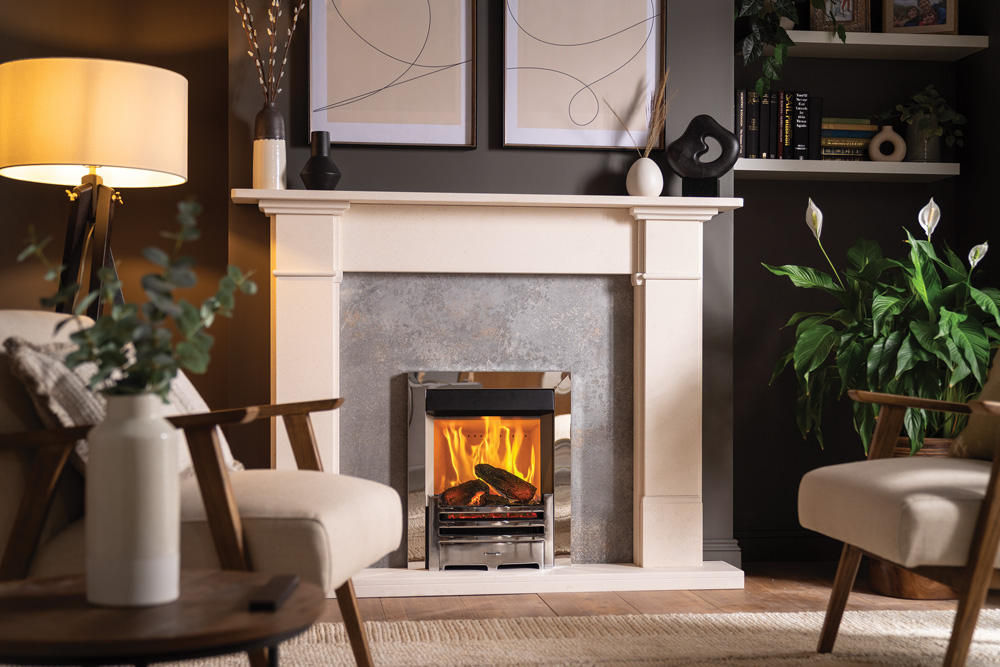
Onyx Mirage Electric – How to Use App

Connect, Control and Personalise Your Onyx Mirage Electric Fire with the MyFlame App


Get started with the intuitive MyFlame app for your Onyx Mirage 40i electric fire, with this useful video guide. Watch this video to be guided through downloading and pairing the fire to the app, adjusting visuals and heat, setting up daily and weekly schedules, as well as enabling energy saving features like Open Window Detection and Auto Shutdown.

In This Video

This guide explains:

  • Download and install the MyFlame App
  • Connect your Mirage fire to Wi-Fi
  • Pair your fire with the app
  • Adjust room temperature settings
  • Use Heat, Fan and Boost modes
  • Create daily and weekly heating schedules
  • Customise flame and fuel bed effects
  • Select pre-set visual experiences
  • Use Open Window Detection
  • Configure advanced settings
  • Manage multiple fireplaces

About the Mirage Electric Fires

The Onyx Mirage combines contemporary design with advanced flame technology and smart controls, making it an ideal choice for modern homes.

Key features include:

  • App-based control
  • Heat-independent flame effects
  • Customisable flame visuals
  • Adjustable fuel bed lighting
  • Weekly scheduling
  • Open Window Detection
  • Boost heating mode
  • Fan-only operation
  • Energy-saving functions
  • Multiple fireplace management

Explore the Mirage Electric Fires Range

Frequently Asked Questions

How do I connect my Mirage fire to the MyFlame App?

To connect your fire:

1. Download the MyFlame App.
2. Turn Wi-Fi on within your Mirage settings menu.
3. Open the app.
4. Select Set Up New Fire.
5. Grant network permissions.
6. Select your fireplace when detected.
7. Enter your Wi-Fi password.
8. Save the connection.

Once paired, you can control your fire directly from your smartphone.

How do I enable Wi-Fi on my Mirage fire?

Using the appliance controls:

1. Press the power button to enter the menu.
2. Navigate to Display Settings.
3. Scroll to Wi-Fi.
4. Toggle Wi-Fi ON using the power button.

The Wi-Fi icon will flash, indicating the fire is ready to pair.

Can I rename my fireplace?

Yes.

During setup or later within the app, you can assign a custom name such as:

• Living Room Fire
• Mirage
• Media Wall Fire
• Lounge Fire

This is especially useful when managing multiple fireplaces.

Can I control the temperature through the app?

Yes.

The MyFlame App allows you to adjust your target room temperature using a simple scrolling control.

The fire automatically works to achieve and maintain your selected temperature.

Yes. The MyFlame App allows you to adjust your target room temperature using a simple scrolling control. The fire automatically works to achieve and maintain your selected temperature.

Heat Mode
Use Heat Mode to warm your room to the chosen temperature.

Fan Mode
Fan Mode circulates air without activating the heater.
This is useful during warmer weather when you want air movement without additional heat.

Boost Mode
Boost Mode operates the heater at its maximum 2kW output for up to two hours.
This setting is ideal for quickly warming a room during colder periods.

Can I create heating schedules?

Yes.

The app allows daily and weekly scheduling so your Mirage fire can operate automatically around your routine.

For example:

• Morning warmth before work
• Afternoon flame-only ambience
• Evening heating sessions

You can create multiple heating periods within a single day.

How do I set a weekly schedule?

1. Enable the timer function.
2. Open the Schedule menu.
3. Select the day you wish to edit.
4. Choose Add Time Slot.
5. Enter a start time.
6. Enter an end time.
7. Select the target temperature.
8. Save the schedule.

Additional time slots can be added throughout the day.

Can I copy schedules to other days?

Yes.

After creating a schedule, you can copy it to other weekdays rather than recreating it manually.

This makes setting a full weekly programme quick and easy.

Can I use flame effects without heat?

Yes.

One of the most popular Mirage features is the ability to enjoy realistic flame visuals independently from the heater.

This makes the fire enjoyable all year round.

Can I customise the flame effects?

Yes.

The app gives you control over:

• Flame colours
• Effect speed
• Brightness levels
• Burn-cycle presets

This allows you to personalise the fire to suit your mood, décor or time of day.

Can I customise the fuel bed lighting?

Absolutely.

The fuel bed can be independently adjusted using:

• Different colours
• Brightness controls
• Speed settings

This helps create a fully customised visual experience.

What are the visual presets?

The Mirage includes pre-configured visual scenes that recreate different stages of a fire's burn cycle.

These settings make it easy to switch between flame styles without manually adjusting each effect.

What is Open Window Detection?

Open Window Detection helps improve efficiency.

If the fire detects a rapid drop in room temperature, it assumes a window or door has been opened and responds appropriately to avoid unnecessary heating.

What is Auto Shut Down?

Auto Shut Down automatically switches the heater off after three hours of inactivity.

This can help conserve energy and provide additional peace of mind.

Auto Shut Down automatically switches the heater off after three hours of inactivity. This can help conserve energy and provide additional peace of mind.

Yes.

The MyFlame App allows multiple fireplaces to be added and managed from a single account.

This is ideal for homes with more than one compatible Onyx fire.

Why Choose the Mirage Electric Fires?

Complete Control from Your Smartphone

Adjust heat, flame effects and schedules without needing the remote control.

Personalise Your Ambience

Create customised flame displays using adjustable colours, brightness and effect speeds.

Convenient Weekly Programming

Schedule heating to match your lifestyle and reduce unnecessary energy use.

Enjoy Year-Round Flame Effects

Use the Mirage's realistic visuals with or without heat.

Energy-Saving Features

Open Window Detection and Auto Shut Down help support efficient operation.

Video Transcript

This video will give you everything you need for using your Onyx Mirage 40 I with the My Flame Map pairing, the My Flame Map. First, download the My Flame Map to your mobile device. Then turn on the wifi on your fire short. Press the power button to access the menu. Press down to display settings select using the power button. Scroll through the settings until you get to wifi. Select the wifi setting and use the power button to toggle on. The wifi icon will flash on screen to show the fire is ready to be paired to your wifi network. Now open the My Flame app on your mobile device. Select set up new fire and then request network permission. Your phone will detect your fire. Select your fire to enter your network details and password. To connect to the wifi press Connect, you can now name your fireplace. For example, living Room Fire or Mirage, press save. You're now connected to the app using the heating functions. The app is user friendly and intuitive for using all advanced settings of your fire. Select the temperature by easily scrolling through. Using the various heating functions is as simple as pressing each function on or off. Simply press heat to switch the heat on or off to get to your target temperature, press to turn the fan mode on to circulate air without heat, which is particularly useful for warmer days. And press boost mode to use the fires heater on its maximum two kilowatt setting for two hours on the main app screen. You can also switch on your timer to use your daily or weekly schedules. How to set your timer schedules. Firstly, ensure the timer is set to one. Then scroll to schedule. Today is shown with a gold outline while the day you are currently editing is shown with a solid gold highlight. Select the day you want to edit and press add time slot. Select a start time and an end time, and then the target temperature you want the fire to achieve. You can actually add another time slot to the same day and repeat the process. This is useful for setting an afternoon glow followed by evening warmth. You can apply this same schedule to other days in the week. You can do this by copying that day's schedule and selecting the days you wish to apply the schedule to Press save. When you have made your selection, press back to return to the main screen. Using your app for visual effects, turn the fire on or off using the power button at the top of the screen, select the effect such as the logs. Enable this effect, and then select the lighting color you want on the color wheel. Here you can change the speed and the brightness of the effect as well. To change the fuel bed lighting, repeat this process by selecting fuel bed, enabling and choosing the color, speed and brightness to your personal taste. Presets can be easily selected and choose between the various stages of the burn cycle, depending on your mood. Adjusting the advanced fireplace settings via the app. Scroll down to fireplace settings where you can view all additional functions. Toggle, open window mode on or off. This feature allows the fire to detect a rapid drop in room temperature. Judging the change as an open window, you can also find out info about your model or turn auto shut down. On or off. This function turns off the heater. After three hours of inactivity, you can rename your fireplace, forget your fire, or even add another fireplace to your app. We hope you found this video helpful to watch our guide on how to use the Mirage 40 I remote. Visit onyx fires.com/mirage remote.


Retailer Login Area

Onyx Logo

Part of the Stovax Heating Group.

    Request a Personalised Quote